Category: Web Hosting

  • PHP warnings are being displayed on my WordPress site

    Faulty plugins or themes can cause PHP warnings like this to appear on your WordPress site, and affect its appearance.

    Keep in mind!

    While this guide will show you how to hide the problem, to ensure your site is fully functional you should contact the plugin developer for assistance.

    Method 1: cPanel MultiPHP INI Editor

    1. Log into your cPanel dashboard

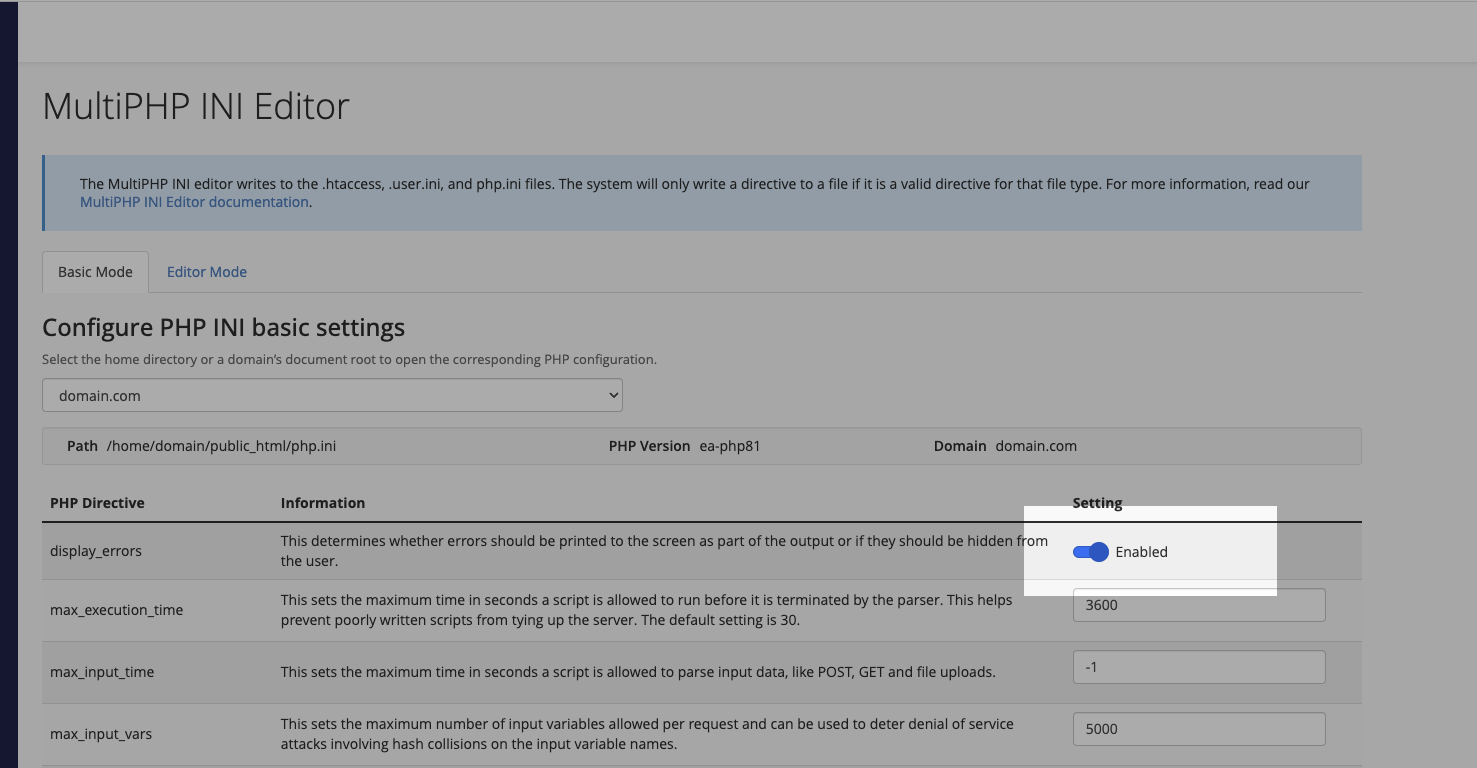
    2. Locate and click MultiPHP INI Editor

    3. Select your domain from the dropdown

    4. Find the display_errors setting

    5. Change the toggle from On to Off

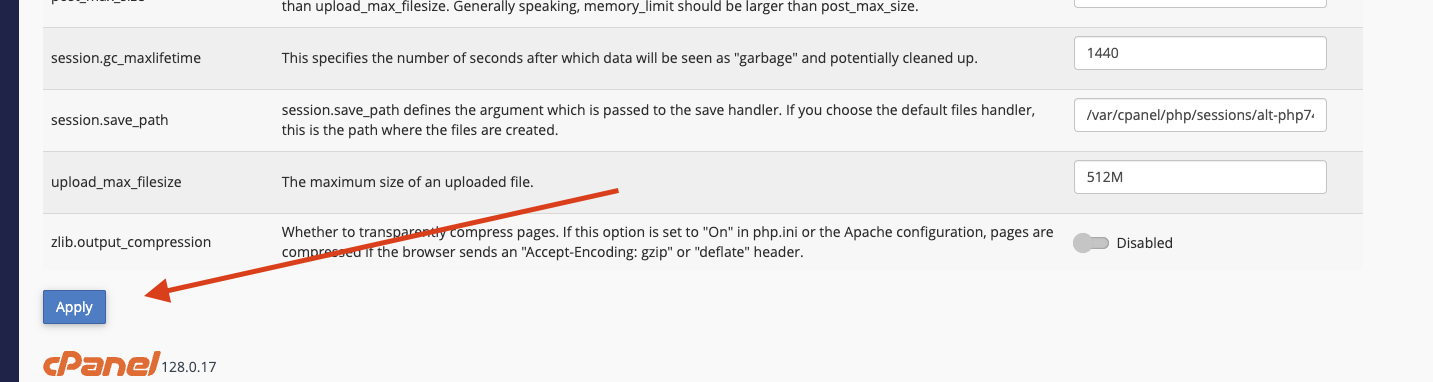
    6. Click Apply

    Method 2: php.ini File

    If you have file access to your hosting account:

    1. Navigate to your website’s root directory

    2. Create or edit the php.ini file

    3. Add the following line:

      display_errors = Off
    4. Save the file

    Method 3: wp-config.php File

    As a final option, you can modify your WordPress configuration:

    1. Open your wp-config.php file

    2. Locate the line /* That's all, stop editing! */

    3. Add this line just above it:

      ini_set('display_errors', 0);
    4. Save the file

  • How to change my cPanel username?

    In some cases, we may be able to help you change your cPanel username.

    Please get in touch with us.

  • How to enable SSL on my website

    Enabling SSL (Secure Sockets Layer) on your website ensures a secure connection between your site and its visitors. SSL helps protect sensitive data, boosts your search engine rankings, and improves user trust. Here’s a step-by-step guide to enable SSL on your website using cPanel’s AutoSSL feature and forcing SSL redirection.

    Step 1: Log in to cPanel

    Log in to your cPanel account using your provided username and password.

    Learn how to log into cPanel.

    Step 2: Access the SSL/TLS Status

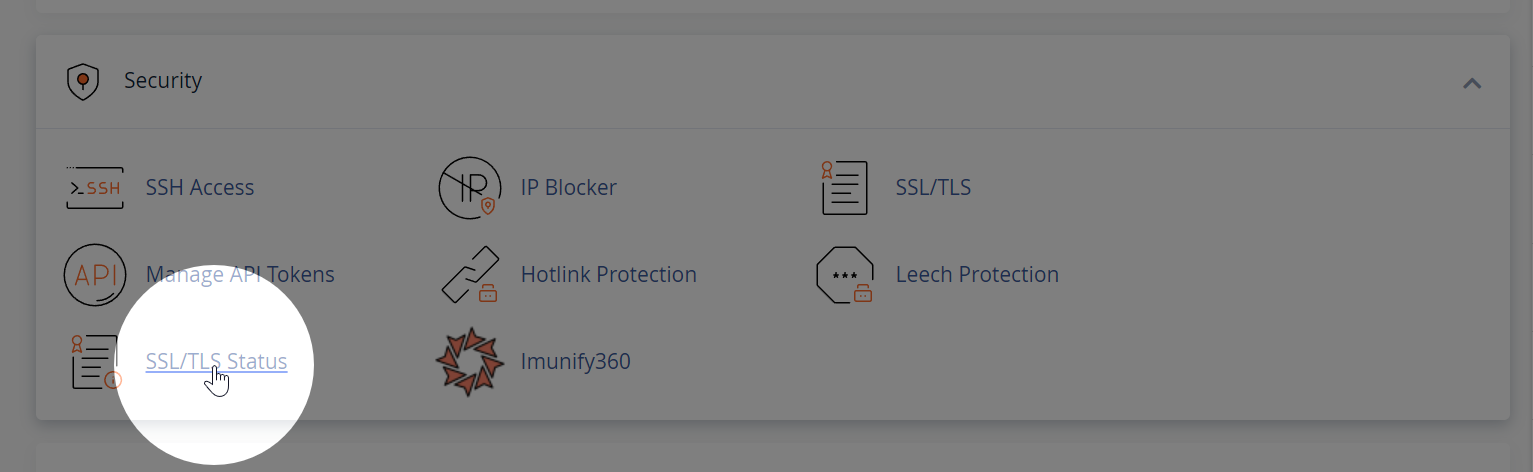
    In cPanel, locate the “Security” section and click on the “SSL/TLS Status” icon. This will open the SSL/TLS Status page.

    Step 3: Run AutoSSL

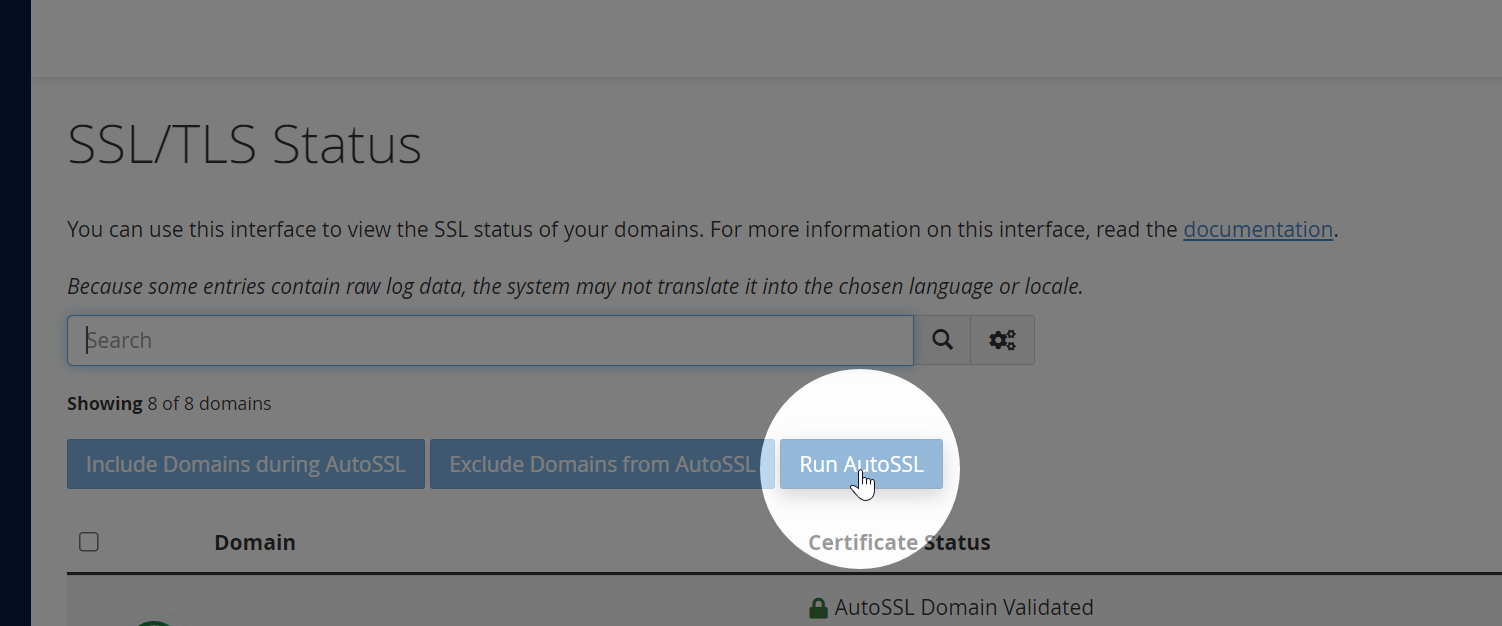
    AutoSSL automatically installs and renews free SSL certificates from Let’s Encrypt. On the SSL/TLS Status page, select the domains for which you’d like to enable SSL, and then click on the “Run AutoSSL” button. The process may take a few minutes to complete.

    Step 4: Verify the SSL certificate installation

    Once AutoSSL completes the process, you should see a green lock icon next to your domain name(s), indicating that the SSL certificate has been successfully installed.

    Step 5 (optional): Enable Force SSL Redirect

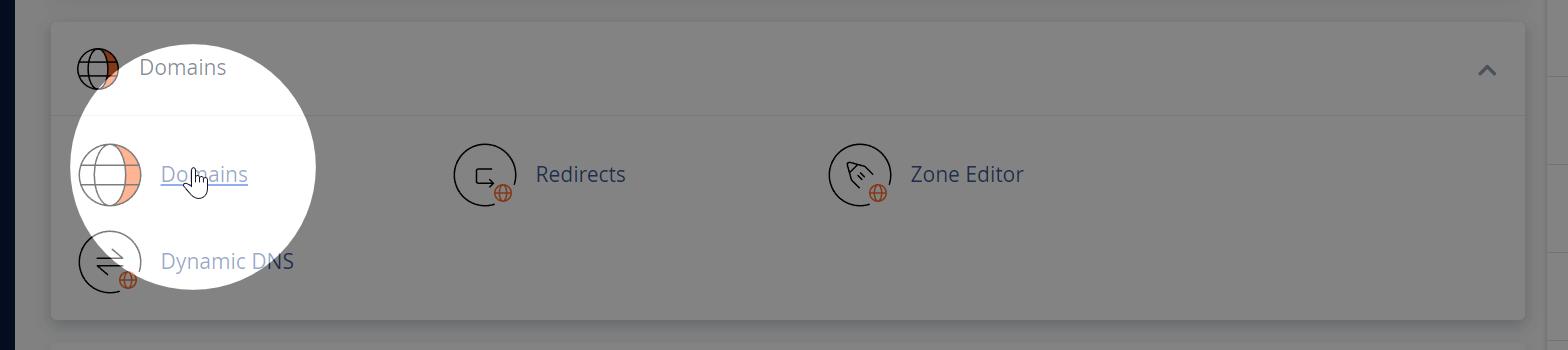
    To force all traffic to use HTTPS, go back to the main cPanel dashboard, and locate the “Domains” section. Click on the “Domains” icon to open the Domains page.

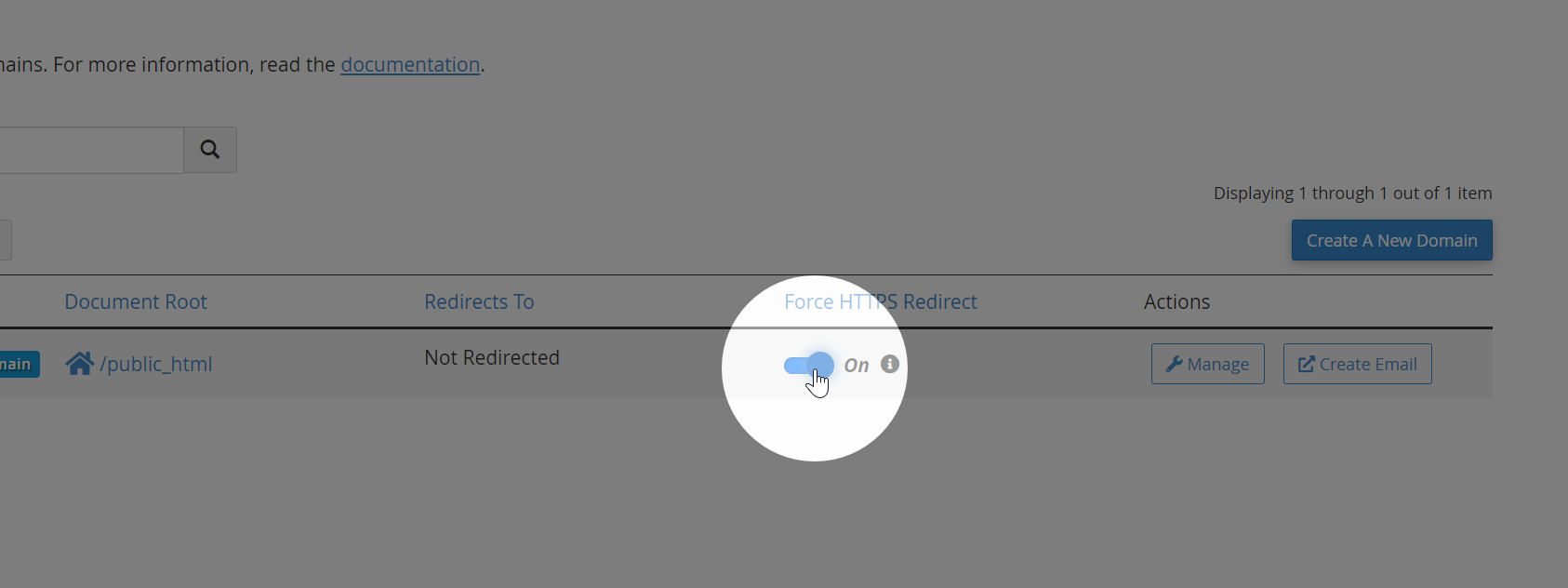
    Find the domain for which you want to force SSL redirection and toggle the “Force HTTPS Redirect” switch to the “On” position. This ensures that all visitors to your website are automatically redirected to the secure HTTPS version of your site.

    Step 6: Restart your browser

    Restart your browser to flush the SSL session cache.

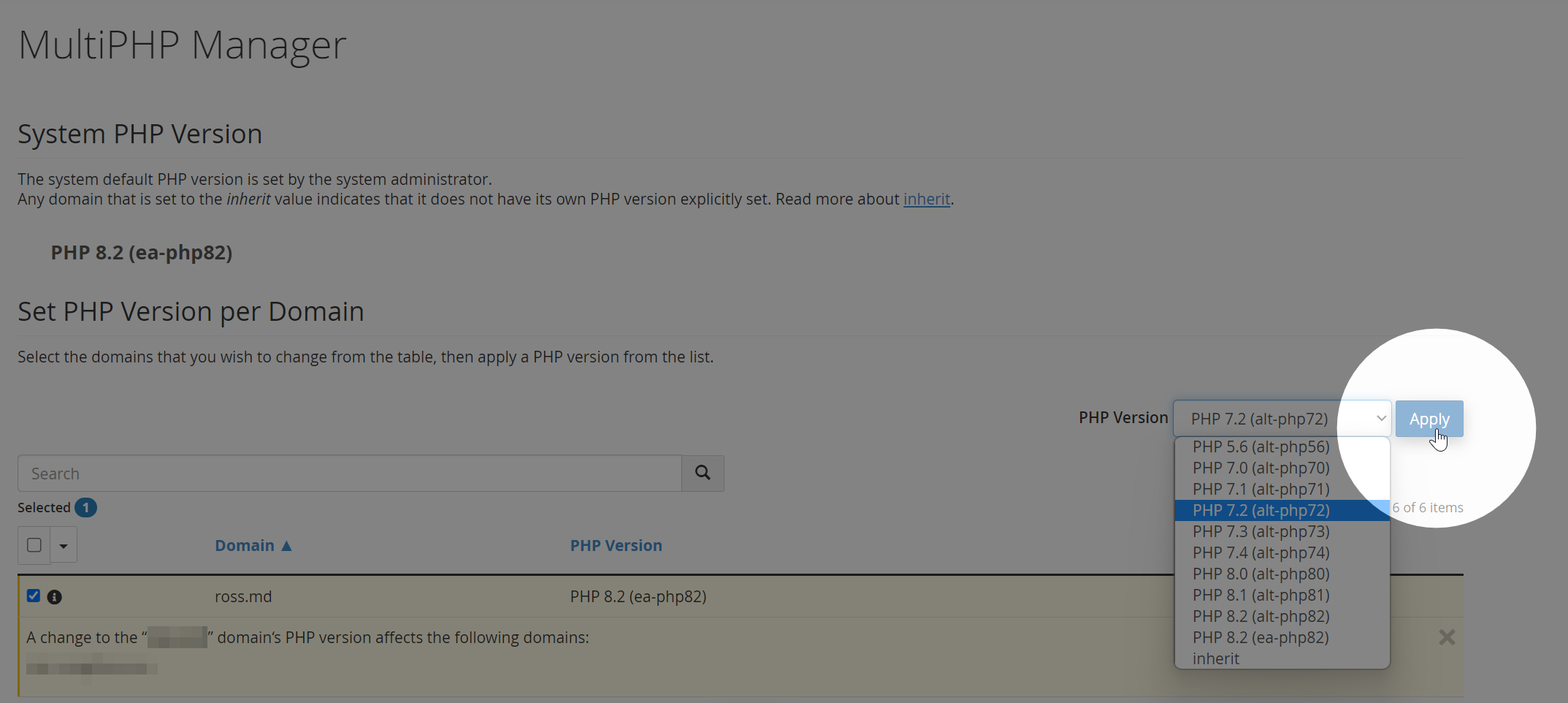
  • How do I change PHP version?

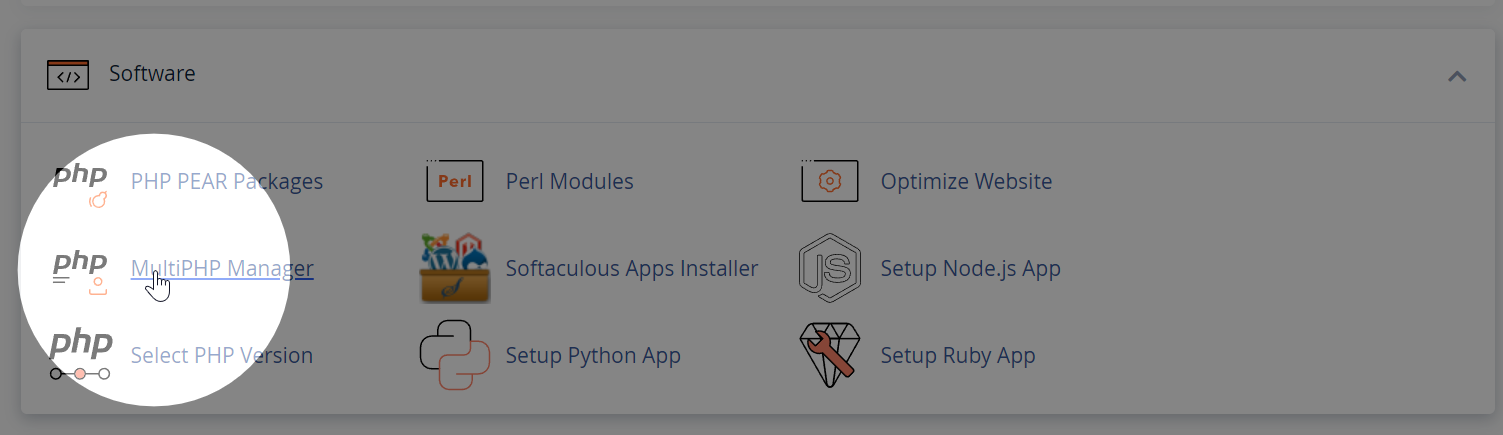
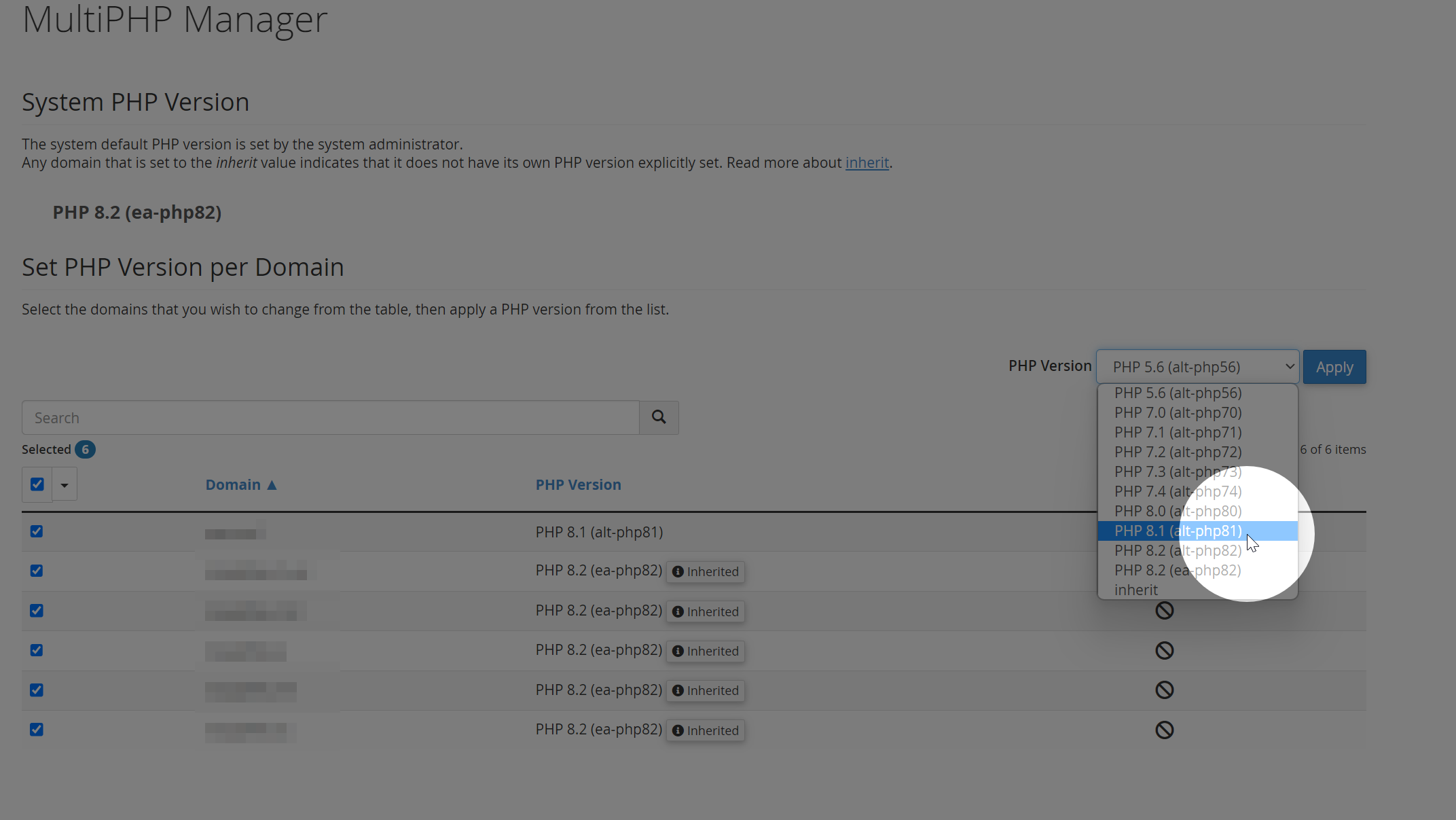
    In cPanel, under the Software section click MultiPHP Manager.

    For each of your domains, select the appropriate PHP version:

    How do I select a separate PHP version for a domain or sub domain?

    To revert a domain to use its own PHP version, go back to the MultiPHP Manager and select a PHP version from there. 

  • How to redirect my website to www/non-www

    Here’s a quick guide on how to redirect to www and non-www using .htaccess:

    To redirect to www:

    RewriteEngine on
    RewriteCond %{HTTP_HOST} !^www\. [NC]
    RewriteRule ^(.*)$ http://www.%{HTTP_HOST}/$1 [R=301,L]
    

    To redirect to non-www:

    RewriteEngine on
    RewriteCond %{HTTP_HOST} ^www\.(.*)$ [NC]
    RewriteRule ^(.*)$ http://%1/$1 [R=301,L]
    

    Simply add the appropriate code to your website’s .htaccess file to apply the redirection.

    See also: How to edit .htaccess

  • How to edit your .htaccess file

    To edit the .htaccess file in cPanel:

    1. Log in to cPanel and go to File Manager.
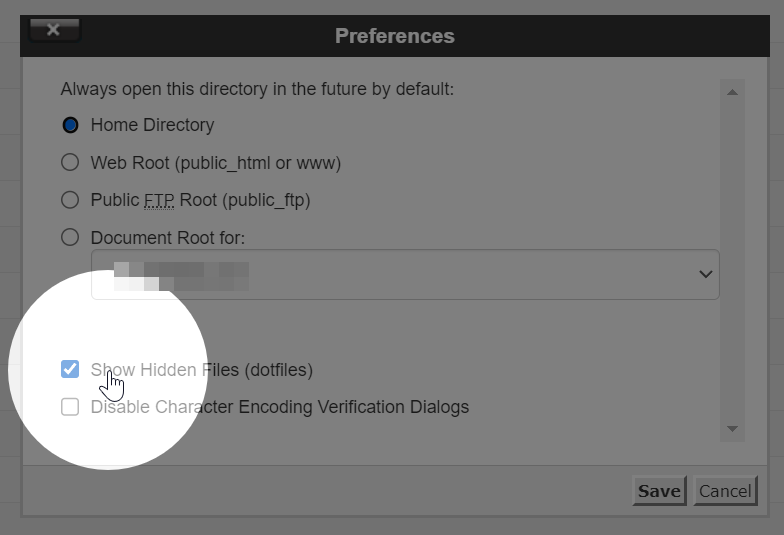
    2. Enable hidden dotfiles by clicking “Settings” in the top-right and checking the box next to “Show Hidden Files (dotfiles).”
    3. Locate the .htaccess file and right-click it to edit it using the code editor.
    4. Save changes when done.

    The main .htaccess file is usually located in the public_html folder. However, it’s possible to create one for every folder.

    Remember to proceed with caution when editing the .htaccess file as incorrect changes can cause issues with your website.

  • Why is GZIP not enabled on my website?

    Some website performance monitoring tools may warn you that GZIP is disabled. If you find that GZIP compression is not enabled on your website, it might be because Brotli compression is being used instead. Brotli is a more advanced compression algorithm that offers better compression ratios and faster loading times.

    Brotli vs. GZIP in LiteSpeed Web Server (LSWS)

    LiteSpeed Web Server (LSWS) 5.3 supports both Brotli and GZIP compression. It caches both types of compressed content and can convert between them as needed. However, to save disk space and improve efficiency, LSWS prioritises Brotli over GZIP.

    How LSWS Handles Brotli and GZIP

    When a browser requests content, LSWS checks its cache. If the requested compression type is not available, LSWS decompresses the cached version and re-compresses it to the desired format. If this conversion occurs frequently (more than 10 times), LSWS will cache the converted version for faster access in the future.

    For example, if your website has Brotli compression enabled, LSWS will serve Brotli compressed content to browsers that support it (like Chrome). If a browser that only supports GZIP (like Firefox) requests content, LSWS will decompress the Brotli version, re-compress it as GZIP, and serve it to the browser.

    If GZIP is not enabled on your website, it is likely that Brotli compression is being used instead. Brotli offers better performance and is prioritised by LiteSpeed Web Server. Rest assured that your website’s performance is still optimised for users with different browser preferences.

    See more: Litespeed Docs

  • Where to find the server hostname/IP address?

    You may need to know the server hostname or IP address when connecting via SFTP, configuring your email client, or connecting to the server via SSH.

    Step 1: Log into cPanel

    Learn how to log into cPanel.

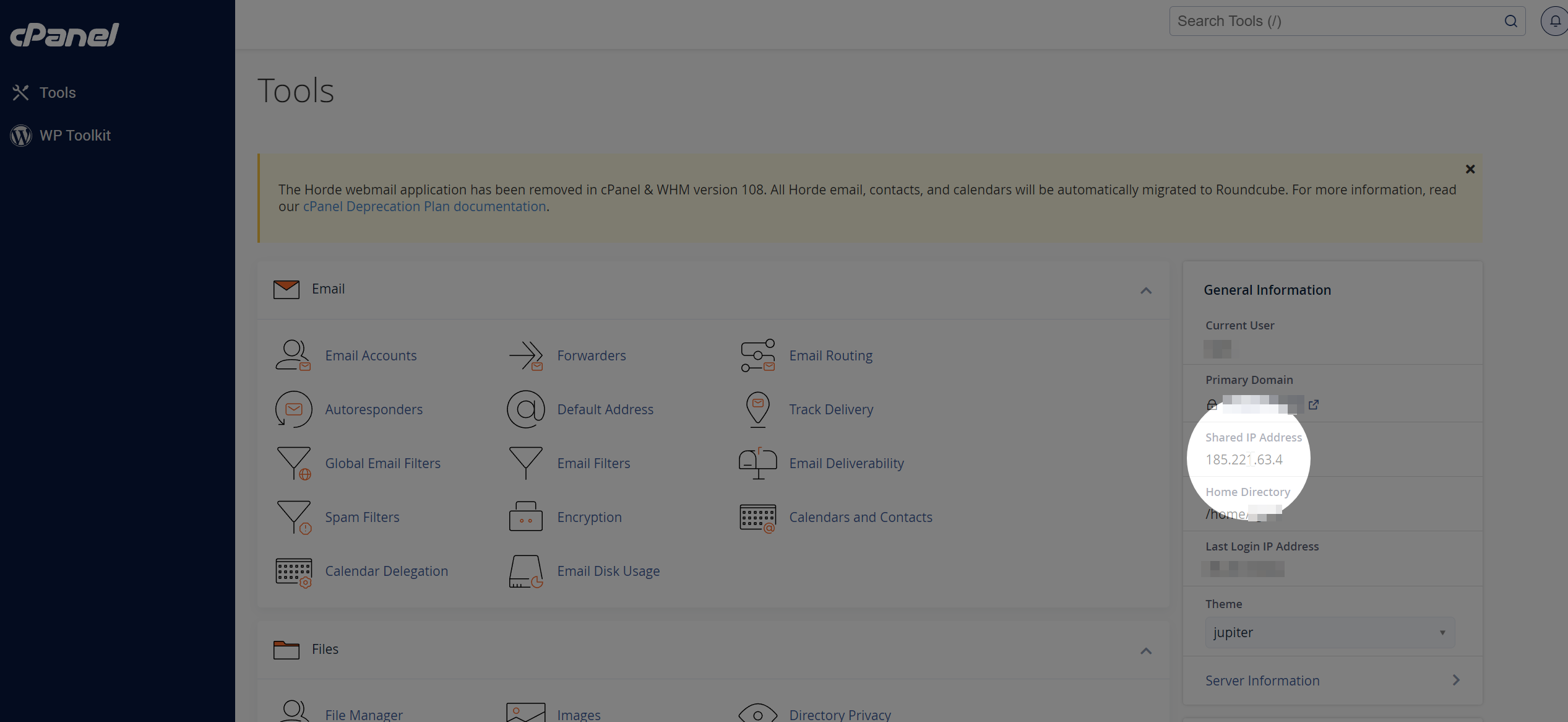
    Step 2: Locate Shared or Dedicated IP Address

    The server IP address is located in the right hand information table under the “Shared IP Address” or “Dedicated IP Address” heading.

  • How to change or reset your cPanel password

    This guide will walk you through how to change or reset your cPanel password. Please note this is different to your Zume Client Area password. Learn how to reset your client area password.

    If you know your current password

    If you know your current cPanel password and are logged into cPanel, follow these steps.

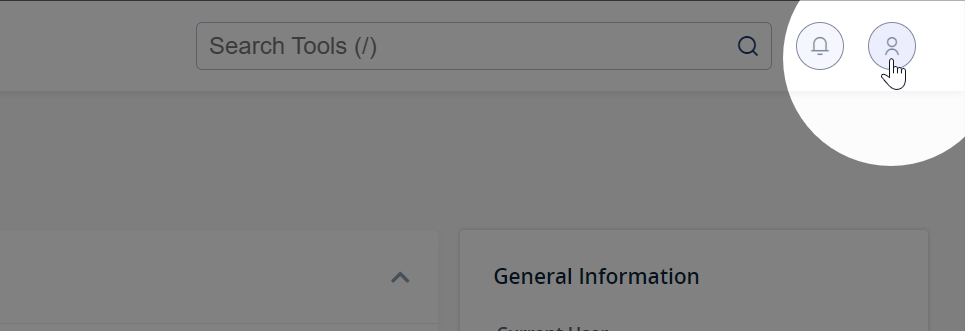
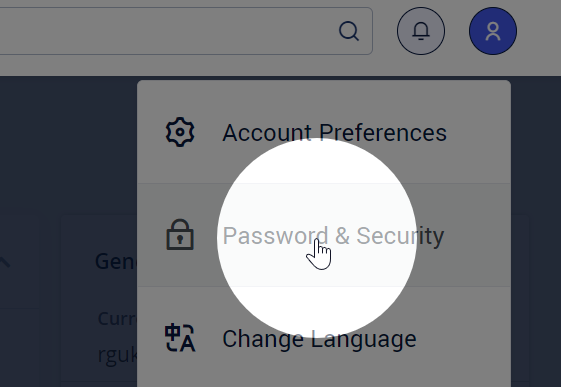
    Step 1: Click the user icon in the top right corner of cPanel

    Step 2: Click Password & Security

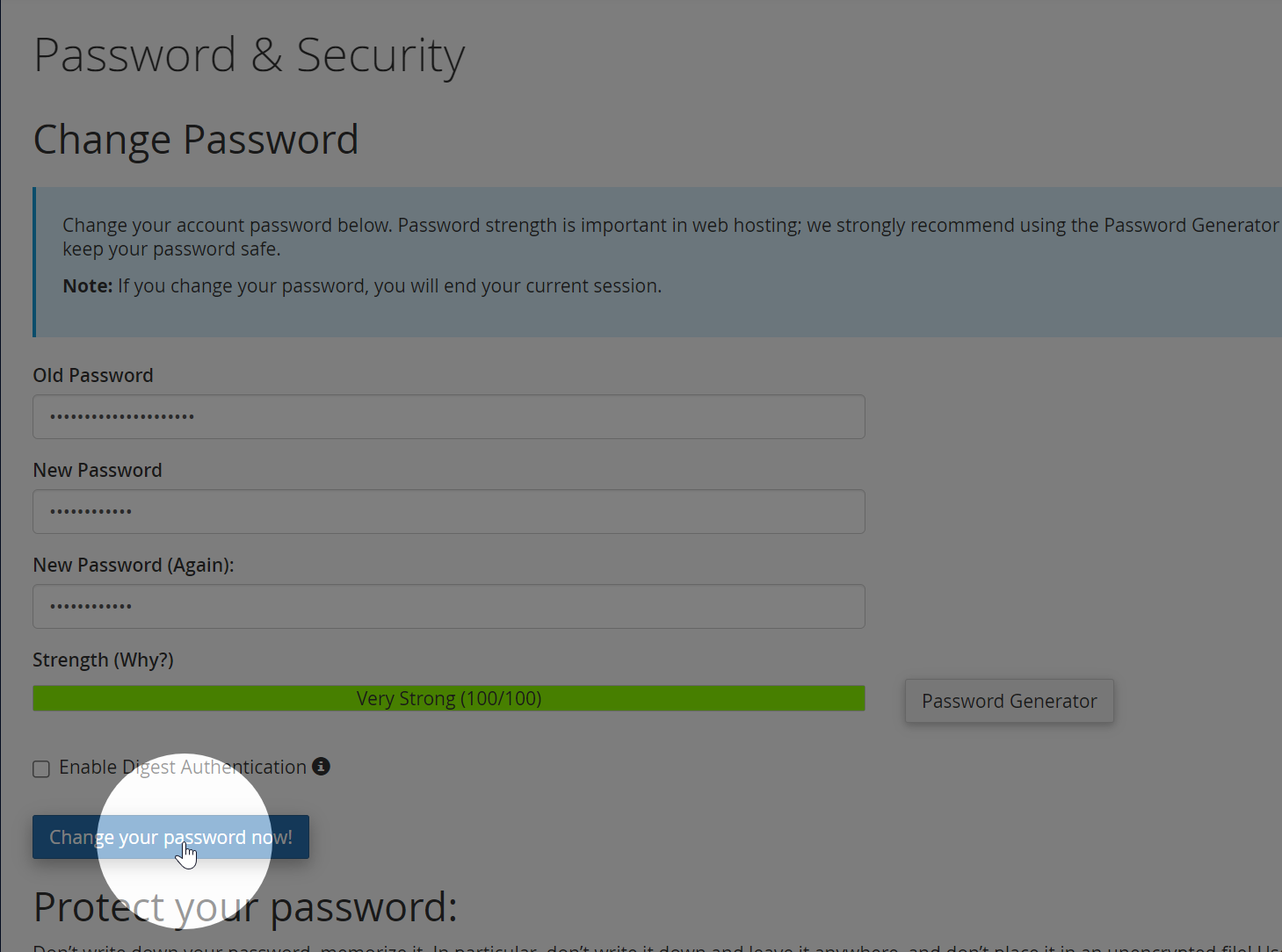
    Step 3: Enter your old and desired new passwords, then click Change your password now!

    If you know do not know your current password

    If you’ve forgotten your password, follow these steps.

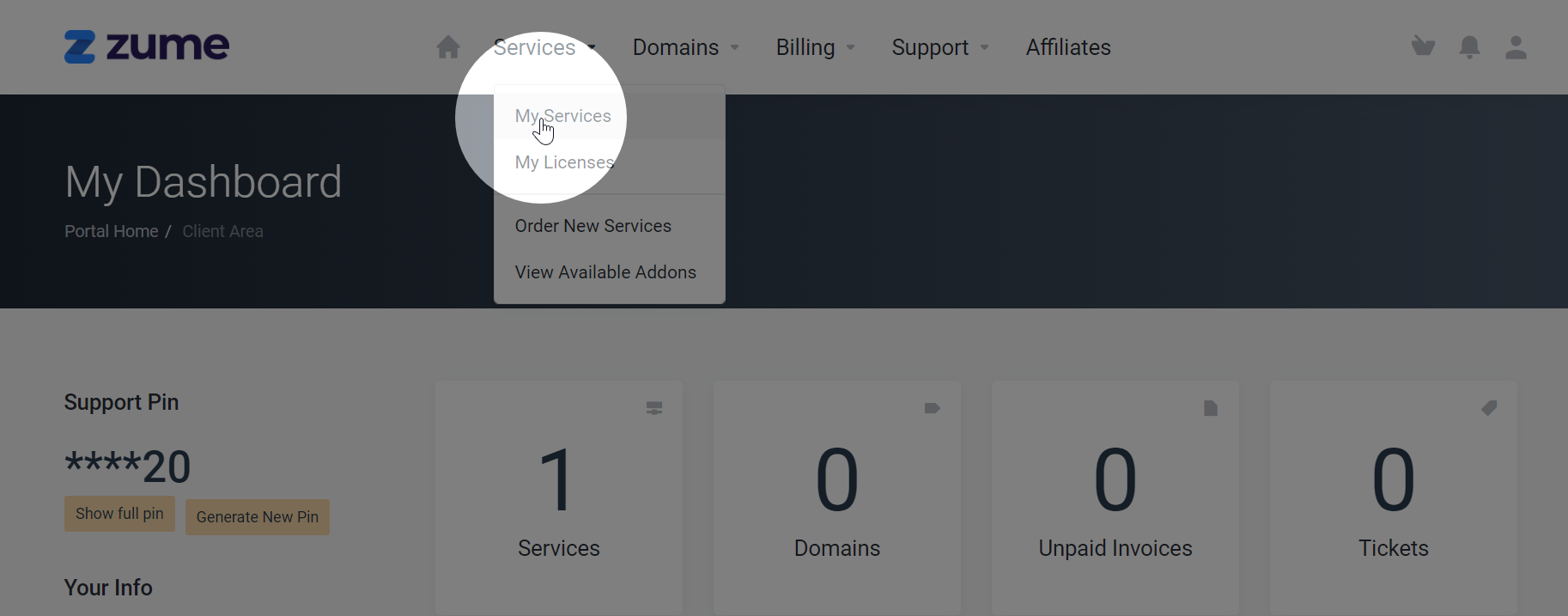
    Step 1: Log into the Zume client area.

    Step 2: Select My Services from the Services dropdown

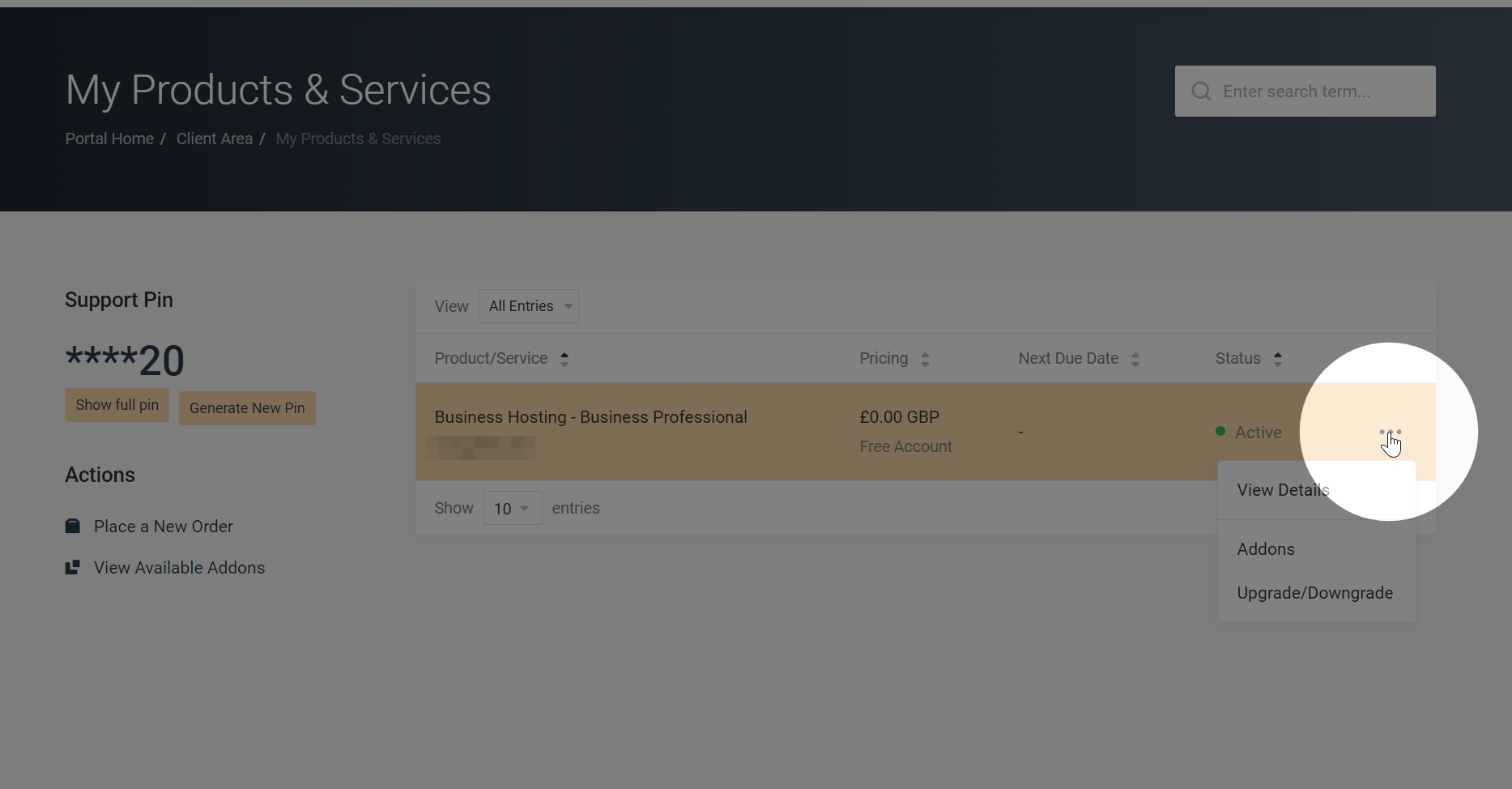
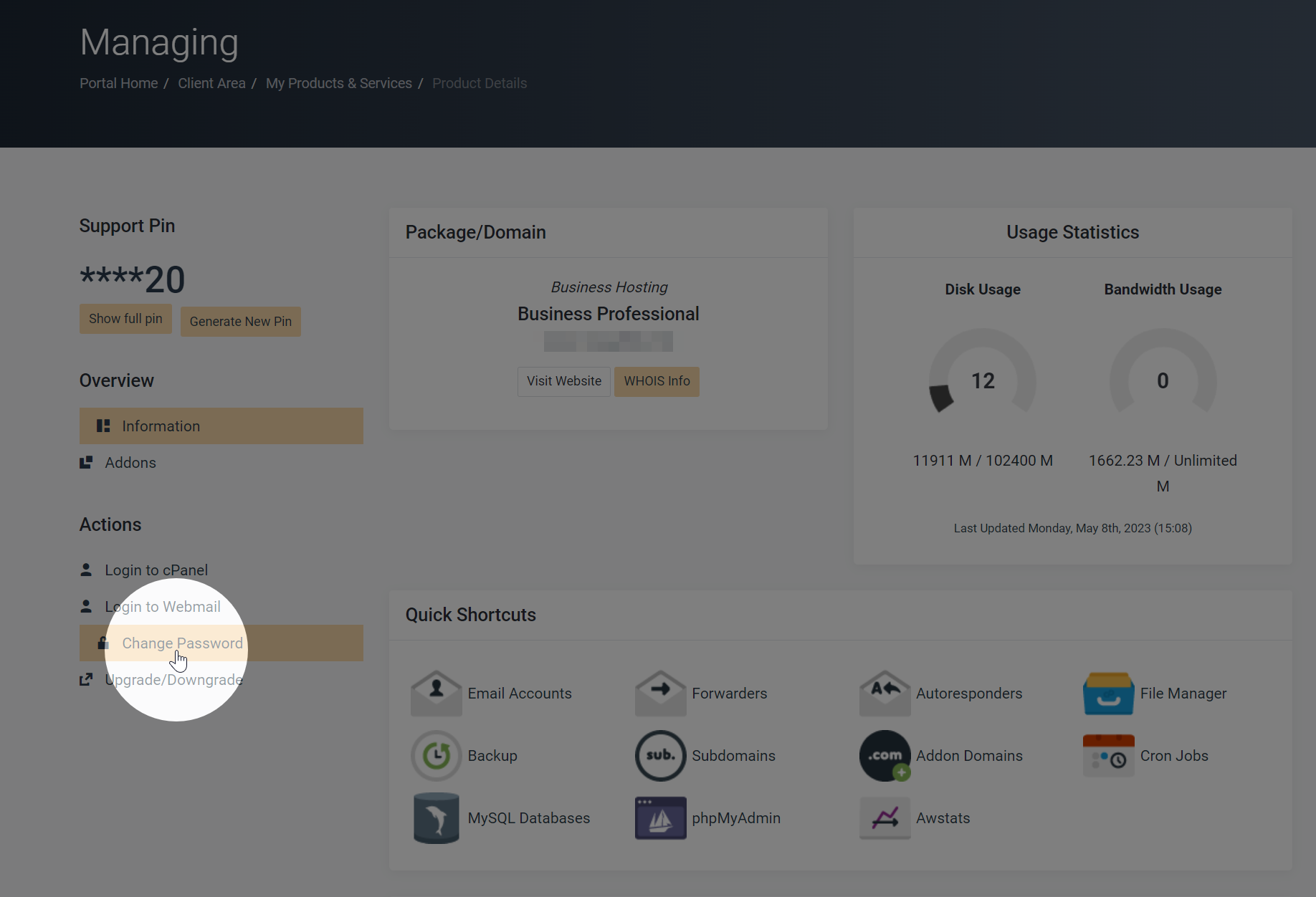
    Step 3: Select the 3 dots on the right of your service and click View Details

    Step 4: Click Change Password on the left-hand menu

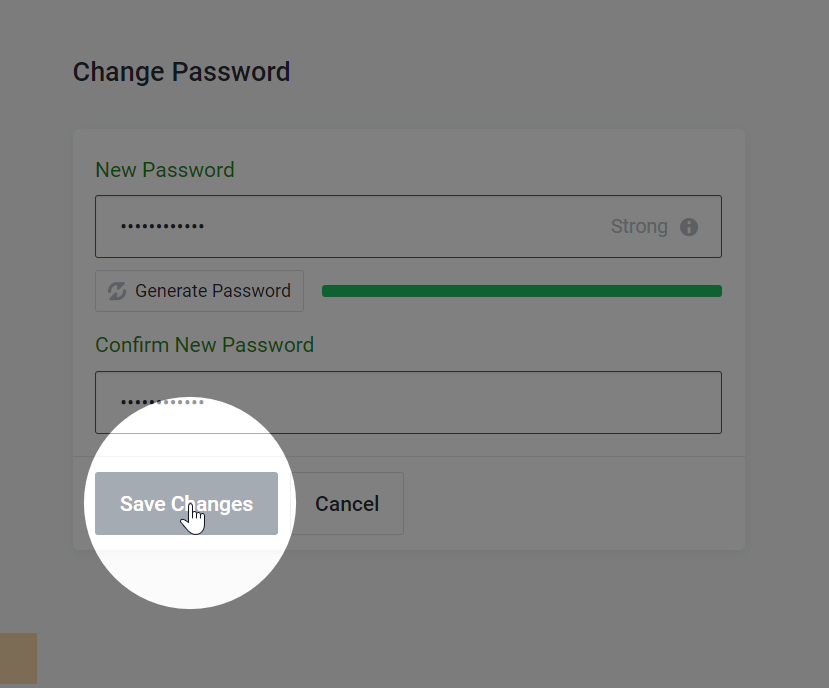
    Step 5: Enter the new password and click Save Changes

  • How do I enable Redis?

    Redis is included with all Business Hosting and Managed WordPress plans.

    The Redis socket for your account is located at /home/{username}/.cagefs/tmp/redis.sock

    If the socket doesn’t exist, please open a ticket to get it activated.

    LS Cache Configuration

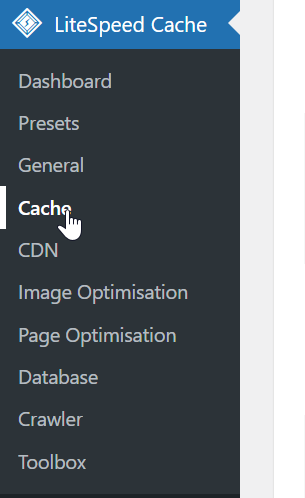
    In the LSCache WordPress plugin, go to the Cache menu.

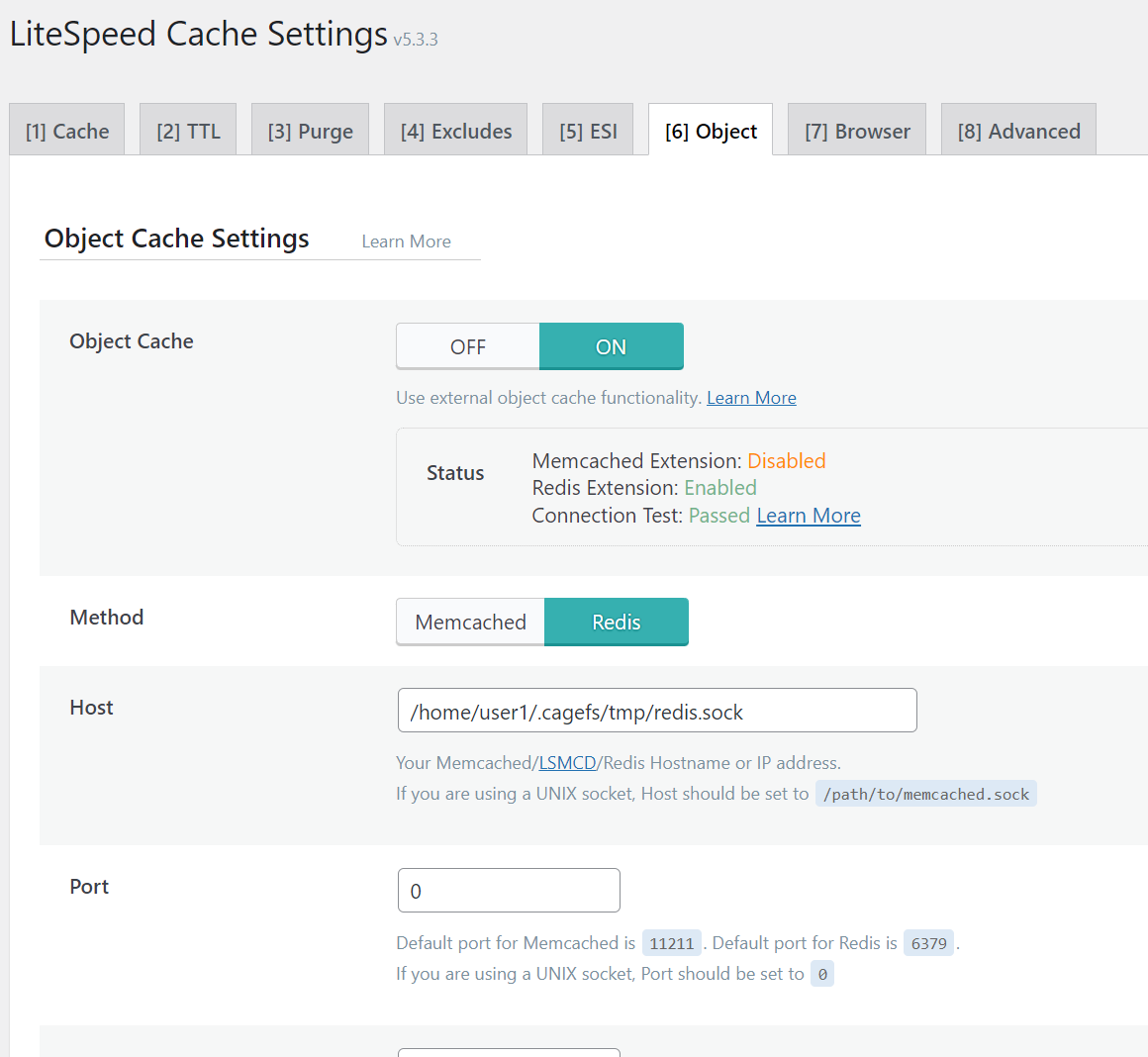
    Under the Object tab, enter the following configuration.

    Remember to set the Port field to 0. This is because the Redis connection is via a socket.

    You should change the /home/user1 path to match your hosting account. You can find this in the General Information panel in cPanel, under Home Directory: